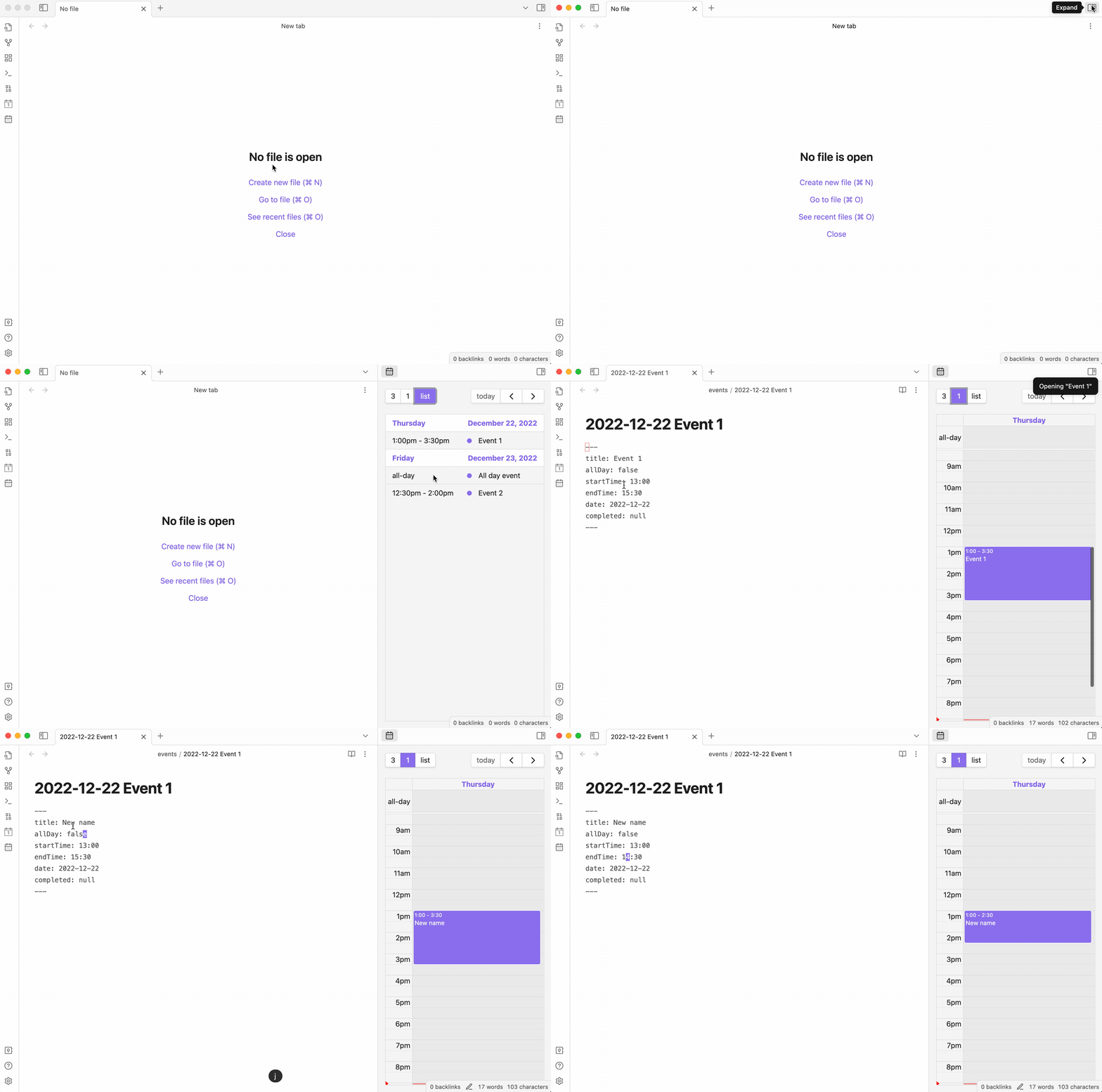
Getting Started
Welcome to Full Calendar Remastered
This guide will walk you through the installation, initial setup, and basic usage of the plugin. For a faster start, check out the Pro Workflow tips below.
Fast track through Installation · First-Time Setup · Opening the Calendar
Sidebar Calendar · Troubleshooting
Pro Workflow
Hybrid Calendar Model
Use a combination for Full Note (for recurring and other detailed events) and Daily Note Calender (daily events stored compactly). Also check out Advanced Categorization and its event naming convention, to unleash the full power of this plugin and supercharge your workflow!
Master the FCR Command
For the fastest experience, skip the buttons and use the FCR Command (NLP Orchestrator). Open it with via the command palette Ctrl/Cmd + P (or add custom keyboard shortcut for direct access) and type naturally: "Team sync tomorrow at 3pm" or "go to next week". It's the "brain" of the plugin and the most efficient way to get things done QUICK.
Task Integration
Seamlessly merge your task management and calendar planning using TaskNotes or the Tasks Plugin integrations.
Installation
Beta Updates with BRAT
- Head over to Obsidian Community Plugin Store
- Select 'Add to Obsidian'
Beta Updates with BRAT
- Install the BRAT plugin from the Obsidian Community Plugins store.
- Open the command palette (Ctrl+P) and run
BRAT: Add a beta plugin for testing. - Enter the repository URL:
https://github.com/YouFoundJK/obsidian-full-calendar - Click Add Plugin.
- Enable Full Calendar in your Community Plugins settings.
Manual Setup
- Go to the latest release on GitHub.
- Download
main.js,manifest.json, andstyles.css. - In your Obsidian vault, navigate to
.obsidian/plugins/and create a folder namedobsidian-full-calendar. - Move the downloaded files into that folder.
- Restart Obsidian or go to Settings > Community Plugins and click the Reload icon.
- Enable Full Calendar.
First-Time Setup
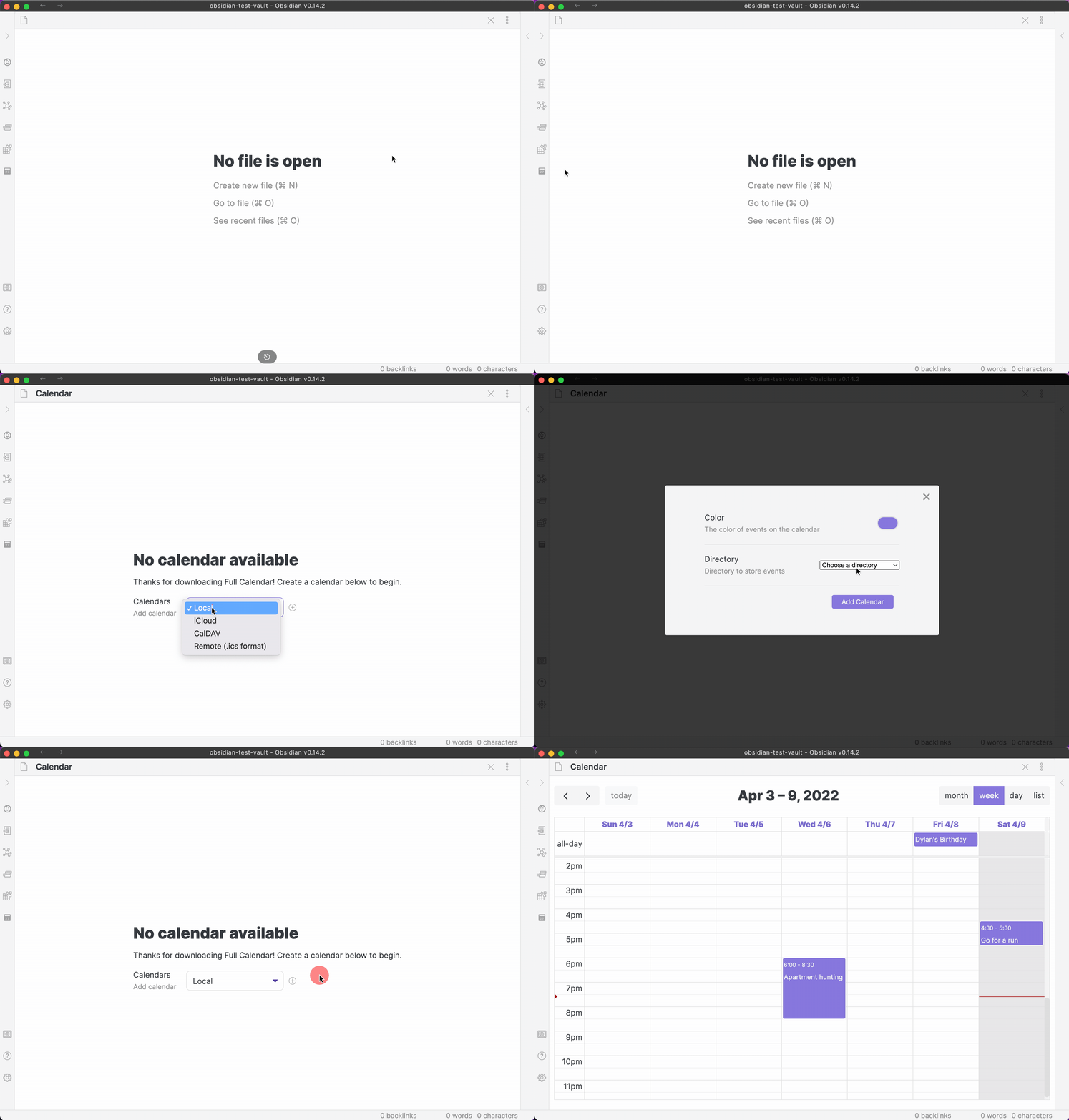
When you open Full Calendar for the first time, you'll be prompted to add your first calendar source.
It's recommended to start with a local calendar type, as these are editable directly from the plugin.
-
Full Note Calendar: The most powerful option. Each event is a separate note in your vault.
-
Daily Note Calendar: Store events as checklist items in your daily notes, in a efficient and compact way.
-
Remote & Integrations: Connect your existing schedules with Outlook, Google Calendar, or CalDAV. Or sync your scheduled tasks directly onto your calendar with TaskNotes.
Opening the Calendar
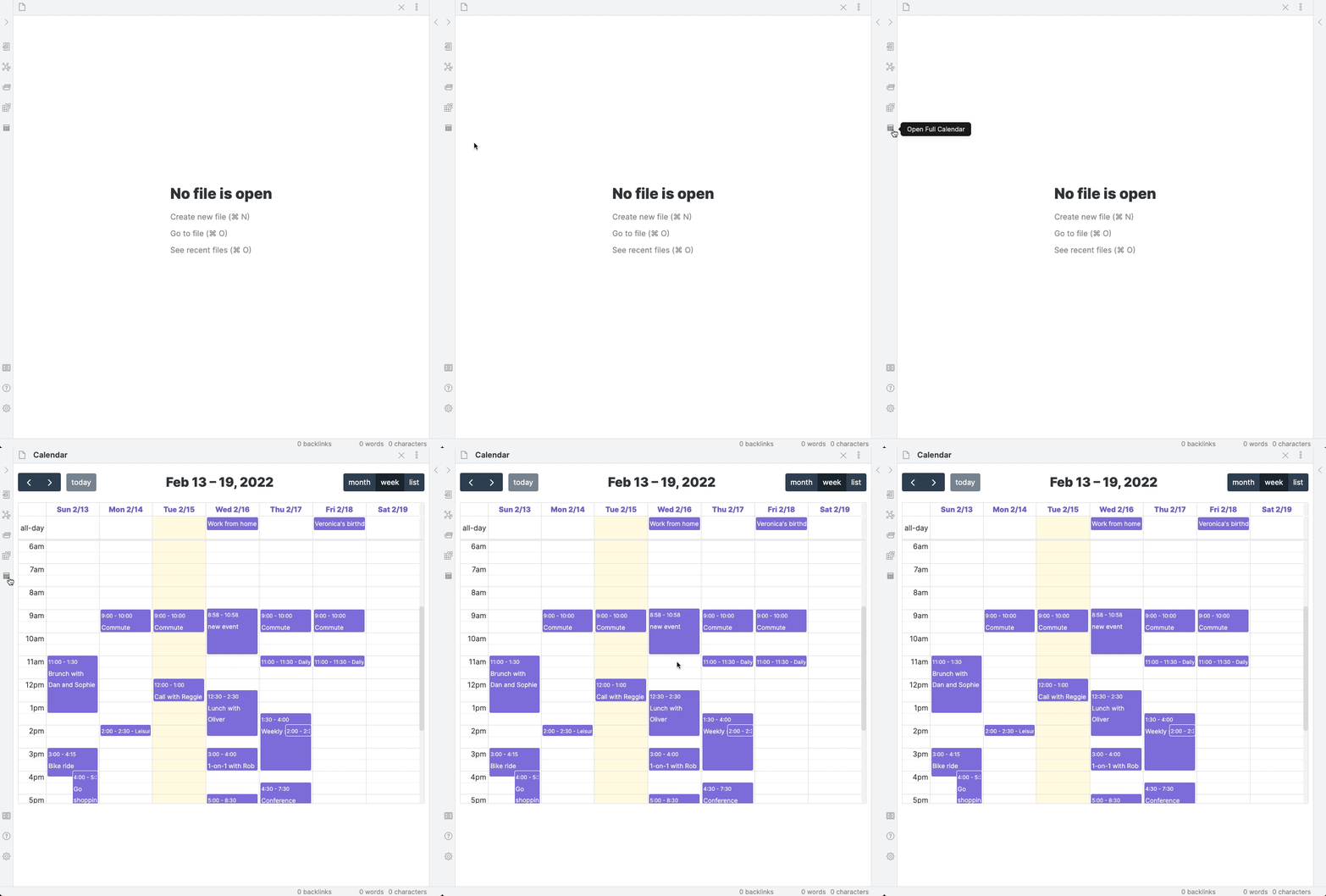
You can open the main calendar view in two ways:
1. Click the Calendar icon in the Obsidian ribbon (the left-hand bar).
2. Run the command Full Calendar: Open Calendar from the command palette (Ctrl/Cmd + P).
Sidebar Calendar
For quick reference, you can open a more compact version of the calendar in the sidebar. Run the command Full Calendar: Open in sidebar.