Recurring Events & Overrides
The recurring event system in Full Calendar is designed to be both powerful and intuitive, allowing you to manage repeating events without creating dozens of notes.
Creating a Recurring Event
- Create a new event or edit an existing one to open the event modal.
- In the Repeats dropdown, select the frequency: Daily, Weekly, Monthly, or Yearly.
- Daily: The event will repeat every day or every X days (e.g., every 3 days).
- Weekly: Choose the specific days of the week the event should repeat on.
- Monthly: The event will repeat on the same day of the month as the start date (e.g., the 15th), or on a specific weekday (e.g., second Sunday).
- Yearly: The event will repeat on the same month and day as the start date (e.g., every January 15th).
- Optionally, set a Start Repeat and End Repeat date to define the range of the recurrence.
- Save the event. A single source item will be created that represents the entire series.
16: For note-backed calendars this is stored as one recurring note event. For CalDAV calendars, Full Calendar writes a real calendar recurrence rule (RRULE) to the remote calendar, so the event is a proper provider-side sequence rather than several local-looking copies.
Recurrence Rule Customization
The Repeats dropdown updates dynamically based on the selected pattern, showing custom interval controls (e.g. interval input for "Every X days") and weekday selectors for weekly rules.
Daily Notes Limitation
Recurring events are not supported in "Daily Note" calendars. Please use a "Full Note" calendar for recurring events.
Overrides: Editing a Single Instance
What if you need to move just one meeting in a series? Or change its title? This is where overrides come in. An override is a standalone, single event that is linked to its parent recurring series.
To create an override, simply drag an instance of a recurring event to a new time or resize it.
The plugin will automatically: 1. Create a new, single-instance event with your changes. 2. Add an exception to the parent series so the original event for that day disappears. 3. Visually, it looks like you just moved one event, but the data is handled cleanly in the background.
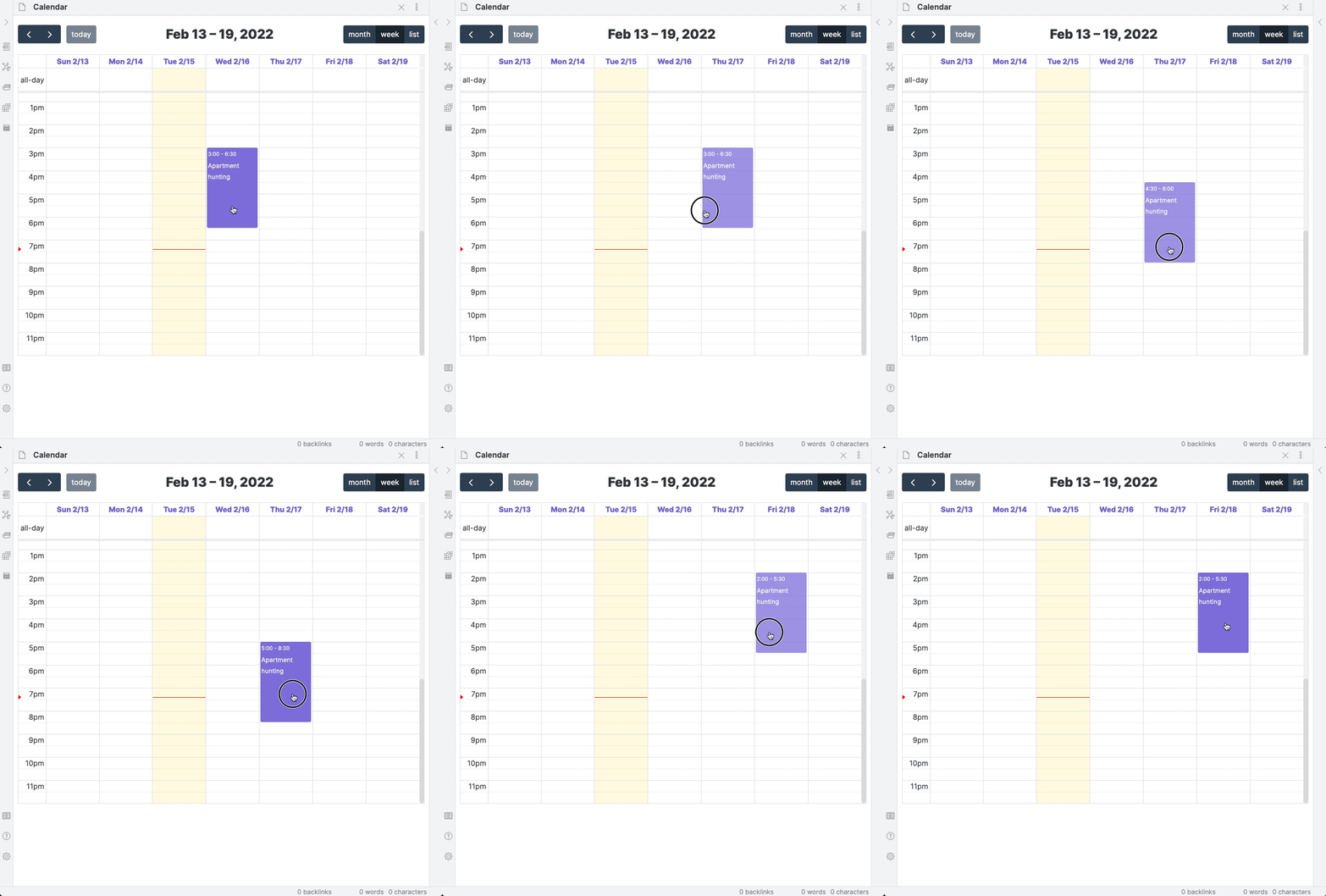
When you drag or resize an event that belongs to a recurring sequence, Full Calendar asks whether you want to:
- Move only this instance: create or update an override for the selected occurrence. Full Calendar creates a clean single-event override and adds an exception to the parent series, preventing recurrence rule leakage and preserving all other occurrences.
- Move the entire sequence: update the recurring event itself so every occurrence follows the new schedule.
Single, non-recurring events move immediately without this prompt.
Recurring Tasks
Tasks in recurring events are fully interactive directly on the calendar view. You can mark a single instance of a recurring task as complete from any view mode:
- Check the box: The task for that specific day will be marked as done and crossed out on the calendar.
- Future instances remain: The task for subsequent occurrences (e.g. next week or next month) appears as normal and ready to be completed.
- Un-check the box: If you made a mistake, un-check the box. This removes the completion record for that specific date and restores the active recurring instance.
Provider-Agnostic Task Completion
Recurring instance completion is backed by provider adapters. For TaskNotes, local note calendars, and remote task sources, toggling a single occurrence persists a targeted instance completion record while preserving the future recurrence rule.
Editing and Deleting
The plugin provides clear options to ensure you only modify what you intend to.
Editing an Inherited Property
If you try to edit an override's title or category in the modal, you'll see that the fields are disabled. This is because these properties are inherited from the parent. Clicking on a disabled field will prompt you:
"This property is inherited from the parent recurring event. Would you like to open the parent to make changes?"
This prevents accidental changes and helps you edit the entire series when you need to.
Note: Some fields on an override intentionally inherit from the parent rule and can't be changed directly on the child.
Deleting a Recurring Event
When you delete an event that is part of a recurring series, the plugin will ask you what you want to do. This happens consistently whether you delete from the event modal, a context menu, or another calendar UI action.
- Delete only this instance: If available for the selected occurrence, this removes just that occurrence or override and leaves the sequence intact.
- Promote child events: This deletes the recurring rule but converts its overrides into standalone events.
- Delete sequence: This deletes the recurring rule and every override associated with the sequence. This cannot be undone.
Remote calendars respect cancellations and exceptions from the source and propagate them into the view. Google, Outlook, and CalDAV own their recurring-instance overrides natively, so moving, editing, or deleting one instance is written back as a provider override instead of as a separate local note.
For CalDAV, the master recurring event and its exceptions usually live together in one .ics resource on the server. Full Calendar updates that shared resource in place when you edit or delete a single override, so the rest of the recurring series remains intact.
Sequence Deletion Safety
Choosing Delete sequence triggers a protective modal prompt summarizing affected occurrences and instances before executing removal.