Chrono Analyser
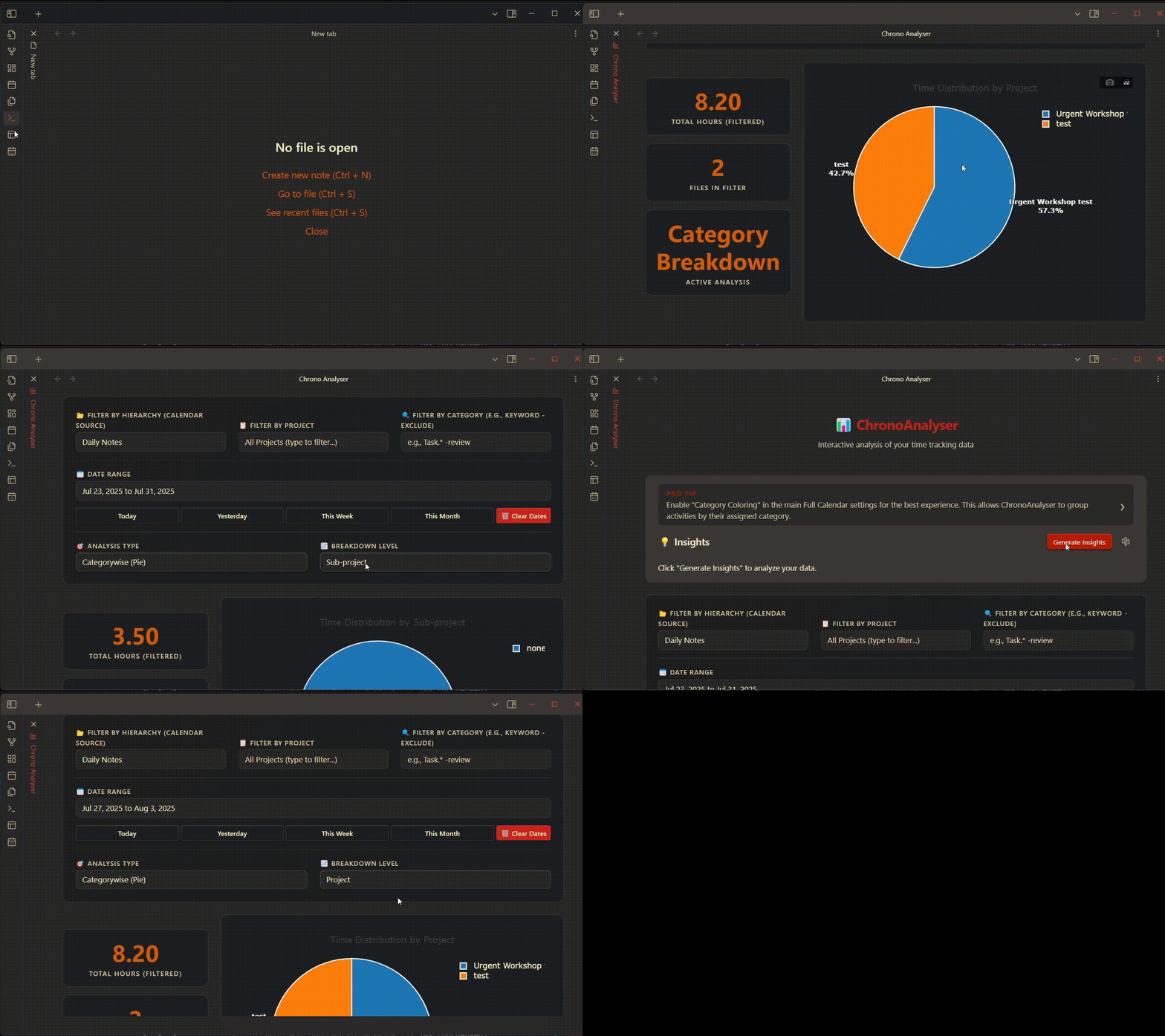
Chrono Analyser is an intelligent, built-in dashboard that transforms your calendar events into powerful, actionable insights. It goes beyond simple charting to help you understand, analyze, and optimize how you spend your time.
Whether you're tracking complex work projects, building consistent habits, or aiming for a better work-life balance, the Chrono Analyser provides the tools you need to see the bigger picture.
If the meaning of a field or chart is unclear while you are using the dashboard, keep Configuration open beside this page. That page documents the exact matching rules and user-facing controls.
See the standalong implementation: ➡️ Original Implementation
Explore real-world scenarios:
➡️ See User Use Cases
Got questions?
➡️ Read the FAQ & Troubleshooting Guide
Two Powerful Modes of Analysis
The Chrono Analyser adapts to your workflow. It operates in one of two modes, depending on your main Full Calendar plugin settings.
Mode 1: Category-Based Analysis (Recommended)
- Requirement: The "Category Coloring" feature is enabled in the main plugin settings.
- How it Works: The analyser uses the first category segment as the top-level grouping (
Hierarchy). If your event title/category structure isCategory - Sub-Category - Event Name, the analyser can also derive aProjectandSub-projectfor deeper analysis. - Supported Calendars: ✅ All of them! Full Note, Daily Note, Google Calendar, CalDAV, and ICS calendars are all included in the analysis, giving you a complete picture of your time.
Mode 2: Folder-Based Analysis (Legacy)
- Requirement: The "Category Coloring" feature is disabled.
- How it Works: The analyser uses the folder path of your Full Note calendars as the
Hierarchy, then parsesProject - Sub-projectfrom the note title using the-delimiter. - Supported Calendars: ⚠️ Only events from Full Note Calendars are processed in this mode.
Terminology Quick Map
These names appear throughout the dashboard and in the insight configuration modal:
| Term | What it means in practice | Where it usually comes from |
|---|---|---|
| Hierarchy | The top-level bucket used for broad grouping | Category name when Category Coloring is enabled, otherwise the Full Note calendar folder/source |
| Project | The main activity label shown in filters, charts, and insight payloads | Sub-category when available, otherwise the event title |
| Sub-project | The lower-level detail beneath a project | Usually the event title or the remaining text after Project - |
| Insight Group | Your custom rule set such as Work, Study, or Wellness |
Defined in Configuration |
| Persona | The type of insight model applied to a group | Productivity, Wellness & Routine, or Ignore in Dashboard |
For the full rule behavior, see Configuration.
Opening the Analyser
You can access the Chrono Analyser directly from the main calendar view. A button labeled "Analysis" is available in the top-right header bar.
When the view opens, the layout has three user-facing areas:
- The Insights panel for generated cards and the configuration gear icon.
- The Filters and analysis controls for hierarchy, project, date range, metric, and chart mode.
- The Interactive chart area and detail popup for drill-down inspection.
Features
The Chrono Analyser is composed of two main features: the Proactive Insights Engine and the Interactive Charting Dashboard.
✨ The Proactive Insights Engine
This is the intelligent core of the analyser. Instead of forcing you to hunt for patterns, the engine analyzes your entire history and presents key findings automatically.
How it Works:
- Configure (Settings Guide): The first step is to teach the engine about your life. Click the
⚙️icon to open the configuration wizard. - Create Insight Groups: Define your own custom groups, like "Client Work," "Study," "Fitness," or "Family Time." For each group, you create simple rules based on your existing hierarchies (categories or folders), projects, and keywords.
- Generate Insights: Click the "Generate Insights" button. The engine will perform a non-blocking analysis of your data in the background.
- Get Actionable Results: The panel will populate with easy-to-read cards, highlighting trends, inconsistencies, and important summaries.
- Explore Further: Many insight cards are interactive. Click on an insight to instantly configure the main chart below to show you the relevant data for a deeper dive.
See Configuration for the exact rule logic used when a record is assigned to an Insight Group.
📊 The Interactive Charting Dashboard
This is your powerful, hands-on tool for exploring your data visually.
- Global Filters: Filter all charts by Hierarchy (Category/Folder) and Project using intuitive autocomplete inputs.
- Filter by Category: Despite the name, this input is a pattern filter over project names. It supports inclusion, exclusion, quoted phrases, and regular expressions. See pattern syntax.
- Date Range Selector: Use the interactive date picker or preset buttons (
Today,Yesterday,This Week,This Month) to narrow your analysis to a specific period. - Analysis Types:
- Category Breakdown (Pie/Sunburst): See how your time is distributed. Click any segment to open a detailed popup with every contributing event.
- Time-Series Trend: Visualize your effort over time. See an overall trend line or a stacked area chart to compare categories.
- Activity Patterns: Discover your peak productivity windows with heatmaps and charts for the day of the week and hour of the day.
What Clicking Does
- Clicking the
⚙️icon opens the Insight Group configuration modal. - Clicking Generate Insights runs the insight engine against your current stored activity data.
- Clicking an item inside an insight card applies the linked filters to the chart controls automatically.
- Clicking a pie or sunburst segment opens a detail popup with project, sub-project, duration, date, and file path information for the matching records.
- The control panel remembers its last-used state locally, so reopening the analyzer restores your previous filter and chart selections.
Generated Insight Categories
Chrono Analyser can show several families of insight cards:
- Global Snapshot: compares the hierarchies that dominated or lagged during the last week.
- Activity Overview: shows the top Insight Groups over the last 30 days.
- Productivity: focus score, week-over-week movers, and lapsed initiatives.
- Wellness & Routine: weekly consistency checks and 30-day balance against productivity time.
The exact cards you see depend on your Insight Group personas and on whether you have enough recent history to compute the comparison.
Common Use Cases
The Freelancer / Consultant: - Create an "Insight Group" for each client. - Use the "Activity Overview" insight to quickly see how many hours you've spent on each client in the last month. - Use the Time-Series chart to ensure your time allocation matches your project timelines.
The Student: - Create Insight Groups like "Lectures," "Revision," and "Assignments." - Use the "Habit Consistency" insight to see if you're falling behind on revision for a specific subject (e.g., "It's been over a week since you've logged 'Calculus Revision'"). - Use the Activity Patterns heatmap to find your best study times.
The Habit Builder: - Create an Insight Group for "Wellness" with projects like "Gym," "Meditation," and "Reading." - The "Habit Consistency" table will instantly show you which habits you've missed, helping you get back on track. - Use the "Activity Overview" to celebrate your successes (e.g., "You spent 8.5 hours on 'Wellness' activities this month!").
Frequently Asked Questions (FAQ)
Q: Why aren't my Google Calendar / remote events showing up in the analysis? A: This happens when you are in Folder-Based (Legacy) Mode. To include all calendar sources, go to the main Full Calendar plugin settings and enable the "Category Coloring" feature. The analyser will then automatically switch to the more powerful Category-Based mode.
Q: My insights look wrong or are empty. What should I do?
A: The quality of your insights depends entirely on your configuration. Click the ⚙️ icon in the Insights panel and carefully review your Insight Groups. The most common issue is misunderstanding which field is being matched. See Rule Parameters and How Matching Works.
Q: How does the "Habit Consistency" insight work? A: It looks for activities that you performed consistently in the past but have missed recently. By default, it flags any project that was logged 2 or more times in the last 30 days but has not been logged at all in the last 7 days.
Q: Will generating insights slow down Obsidian? A: No. The core charting dashboard is designed to be fast and lightweight. The Insight Engine only runs when you explicitly click the "Generate Insights" button, and it performs its analysis in non-blocking chunks so the Obsidian interface remains responsive.