Full Note Calendar
This is the most powerful and flexible calendar type. Each event is a separate note in your Obsidian vault, allowing you to add extensive notes, tasks, and links directly related to an event.
Events are defined by the YAML frontmatter at the top of the note. The plugin manages this frontmatter when you create or edit events in the calendar view.
The note's filename is also managed by the plugin to make notes easy to locate, typically in the format <YYYY-MM-DD> <Event title>.md. However, the filename is purely for file organisation — the plugin always reads the event title from the title: frontmatter field.
Best for...
Users who want to treat events as first-class notes, adding rich context like meeting agendas, personal reflections, or related tasks. This is the only calendar type that supports all features, including multi-day events.
Power Up with Categories
Full Note calendars work seamlessly with the Advanced Categories feature, allowing you to color-code your events and organize them for timeline views. It's highly recommended!
Setup
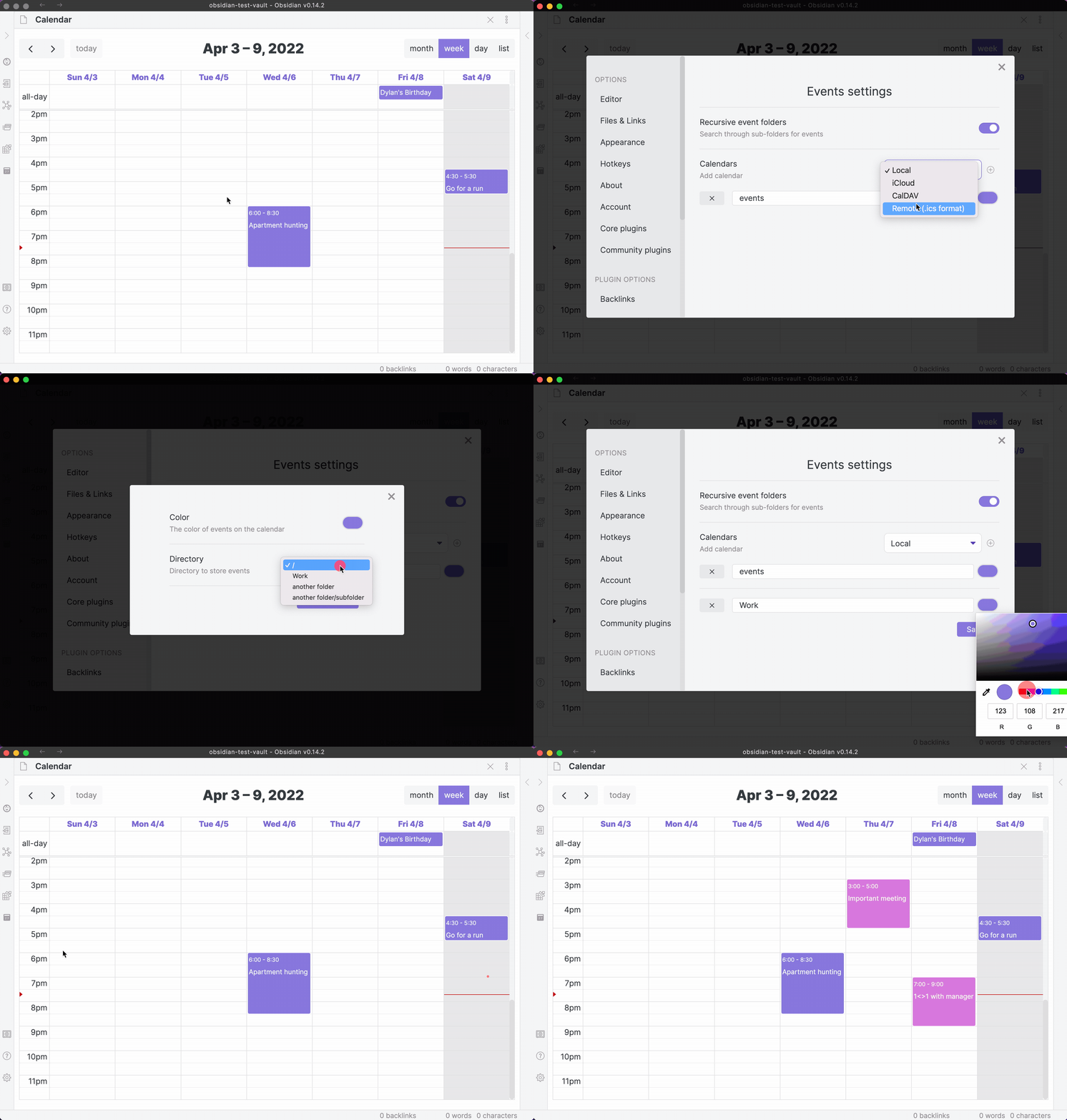
- In Full Calendar settings, add a new calendar source.
- Select the type Full Note.
- Choose an existing folder in your vault where your event notes will be stored.
- Optionally, specify a custom event note template in the template text box.
Event Notes Templating
You can define a custom Markdown template to automatically populate the body content of newly created event notes inside your Full Note calendar directory. This template uses double-braced placeholders (e.g., {{title}}, {{date}}, etc.) to embed event metadata.
For details on syntax, list of placeholders, and default layouts, see the Note Templating System Guide.
Frontmatter Schema
When you create or edit an event note, the plugin manages its YAML frontmatter. The standard schema supports the following fields:
| Key | Type | Description |
|---|---|---|
title |
String | The authoritative event title. This is what appears on the calendar, regardless of the note's filename. Enclosed in double quotes if it contains colons or special YAML characters (e.g., title: "Super: Event"). |
category |
String | The optional category tag. |
location |
String | The optional location or address string (e.g., Office Room 4B). |
description |
String | A multiline description/notes block. |
allDay |
Boolean | True for all-day events. |
date |
Date | The event date in YYYY-MM-DD format. |
startTime |
Time | Start time for timed events (HH:mm). |
endTime |
Time | End time for timed events (HH:mm). |
timezone |
String | The source timezone anchor (e.g., America/New_York). |
Quote Enclosing & Special Characters
Full Calendar automatically encloses string values in double quotes when creating or updating notes (e.g., title: "Super: Event"). This ensures titles containing colons (:) or other YAML-reserved characters are stored safely without causing YAML parse errors in Obsidian. Existing notes with unquoted colons are handled seamlessly via a backward-compatible fallback parser.
Interactive Locations & Descriptions
URLs in the location and description fields are automatically linkified and rendered as clickable hyperlinks in the Event Details modal. For details, see Video Conference & Linkification Support.
Frontmatter-Pure Event & Task Identification
The plugin looks directly at the YAML frontmatter to detect events and tasks without depending on note filenames:
- Date Resolution:
date:(authoritative) — standard event date (YYYY-MM-DD).- If
date:is not present, the plugin seamlessly checksdue:,scheduled:,start:, orstartDate:as fallback date fields. - Task Detection:
- Notes containing
isTask: true,task: true,completed: false(or a completion date),due:, orscheduled:are automatically identified as calendar tasks. - Task completion supports both boolean (
true/false) and datetime ISO timestamp formats according to your calendar source's configuredtaskCompletionStyle. - Subfolder Discovery:
- Full Note calendars recursively search all nested subdirectories inside your configured calendar folder.
Event title priority
The plugin resolves the displayed event title using the following priority order:
title:frontmatter field (authoritative) — if present and non-empty, this is always used.- Cleaned filename fallback — if
title:is absent, the plugin derives a clean title from the filename by stripping known auto-generated prefixes: - ISO date prefix →
2026-09-05 Team StandupbecomesTeam Standup - Recurrence prefix →
(Every M,W) Team StandupbecomesTeam Standup - Unique suffix →
Meeting-_-_-1becomesMeeting
This means you can freely rename note files without affecting what the calendar shows, as long as the title: frontmatter field is set.
Rename-Safe Events and Folders
Because event identity and date information are derived directly from frontmatter, renaming a note or moving its enclosing folder in the file explorer will never cause it to disappear from the calendar. The plugin immediately listens to Obsidian's file rename and metadata resolve events, re-indexes the note at its new path, and keeps your schedule perfectly synchronized.
Filename conventions and duplicates
- Each event is stored as one Markdown file whose filename is derived from the event date and title. When Advanced Categories are enabled, the category/subcategory prefix is included in the filename.
- Invalid filename characters are sanitized (e.g.,
:/\\*?"<>|are replaced with spaces, consecutive spaces collapsed). - Because filenames must be unique within the folder, two events with the same date and same final title resolve to the same filename and cannot both exist. Practically, this means:
- Two single-day events on the same date with the same title are not allowed in the same Full Note calendar folder.
- Recurring events use descriptive filenames (e.g.,
(Every M,W) Title.mdor(Every year on Jan 5) Title.md) and will also be unique per series.
When creating or editing from the modal, the plugin performs a duplicate check and will block creation if a file with the target filename already exists.
Timezone handling (Full Note)
- Full Note events are anchored to a specific timezone via the
timezonefield in frontmatter. - When reading legacy notes that lack
timezone, the plugin auto-upgrades them by writing your current display timezone into frontmatter to preserve accurate conversions. - All times are converted to your chosen Display Timezone for viewing. See Timezone Support.
Multiple Full Note Calendars with overlapping folders
When you configure multiple Full Note calendars with nested directory structures (e.g., Events/ and Events/Work/), the plugin uses a specificity-based ownership model to prevent duplication:
Rule: The calendar with the most specific (deepest) folder path claims ownership of events in that folder.
Example:
- Calendar 1: Events/
- Calendar 2: Events/Work/
- Files in
Events/Work/→ Calendar 2 (more specific) - Files in
Events/(but not in a subdirectory) → Calendar 1
This ensures each event belongs to exactly one calendar, even if multiple calendars could technically "see" the same file.
Moving events between calendars
- Moving events between calendars is currently supported only between Full Note calendars.
- Moving to or from a Daily Note calendar is not supported.
Task Completion Style
When you mark a task complete in a Full Note calendar, the plugin updates the frontmatter's completed field. You can configure which style you prefer under the calendar settings:
- ISO Date/Time String (Default): Saves the completion date and time as an ISO string (e.g.
completed: 2026-06-13T14:02:48+02:00). This is recommended because it preserves exact completion timestamps. - Boolean: Saves completion as a standard YAML boolean (
completed: truewhen checked,completed: falsewhen unchecked). Use this style if you manually edit your frontmatter or use other metadata-based plugins (such as Dataview or Metadata Menu) that expect simple boolean properties.