Hover Preview & Context Menu
Interact with events quickly without leaving the calendar view using hover previews and the right-click context menu.
Hover for Event Details
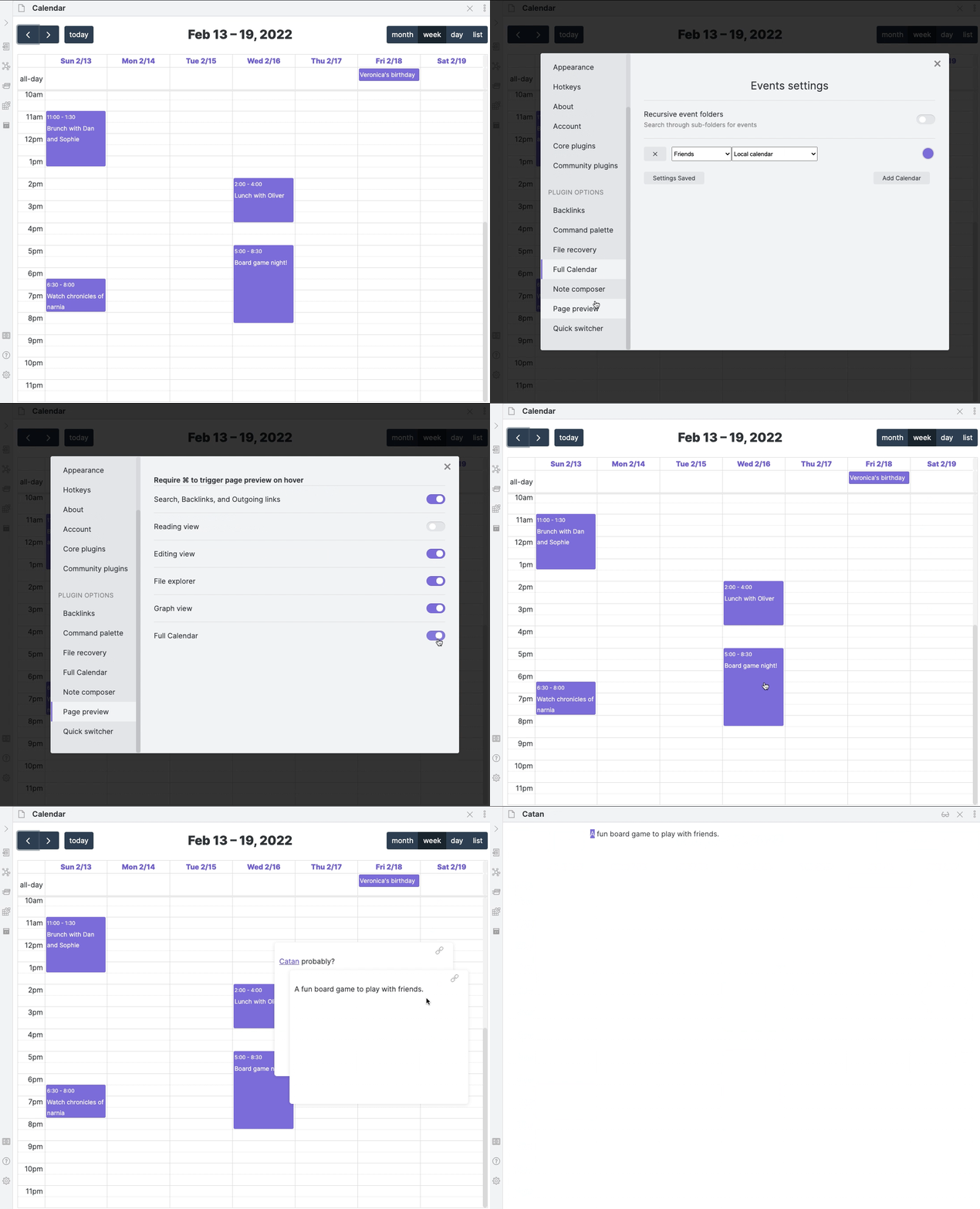
Using the core Page Preview plugin, hold Ctrl/Cmd and hover over an event to preview its local source or linked note.
With the Name-based linked-note strategy, preview lookup uses the sanitized event title in the configured linked-notes folder. Every event with that same title previews the shared note—even when later scheduling creates a different calendar UID. Deadline-based mode continues to preview the note attached to the specific event or occurrence.
Hover boundaries are event-specific: moving directly from an event without a note to one with a linked note still opens the second event's preview; you do not need to move through empty calendar space first.
This is a great way to quickly see meeting notes, agendas, or other context you've added to an event's note.
Note
You can disable the Ctrl/Cmd key requirement in the "Page Preview" core plugin settings.
Right-Click Context Menu
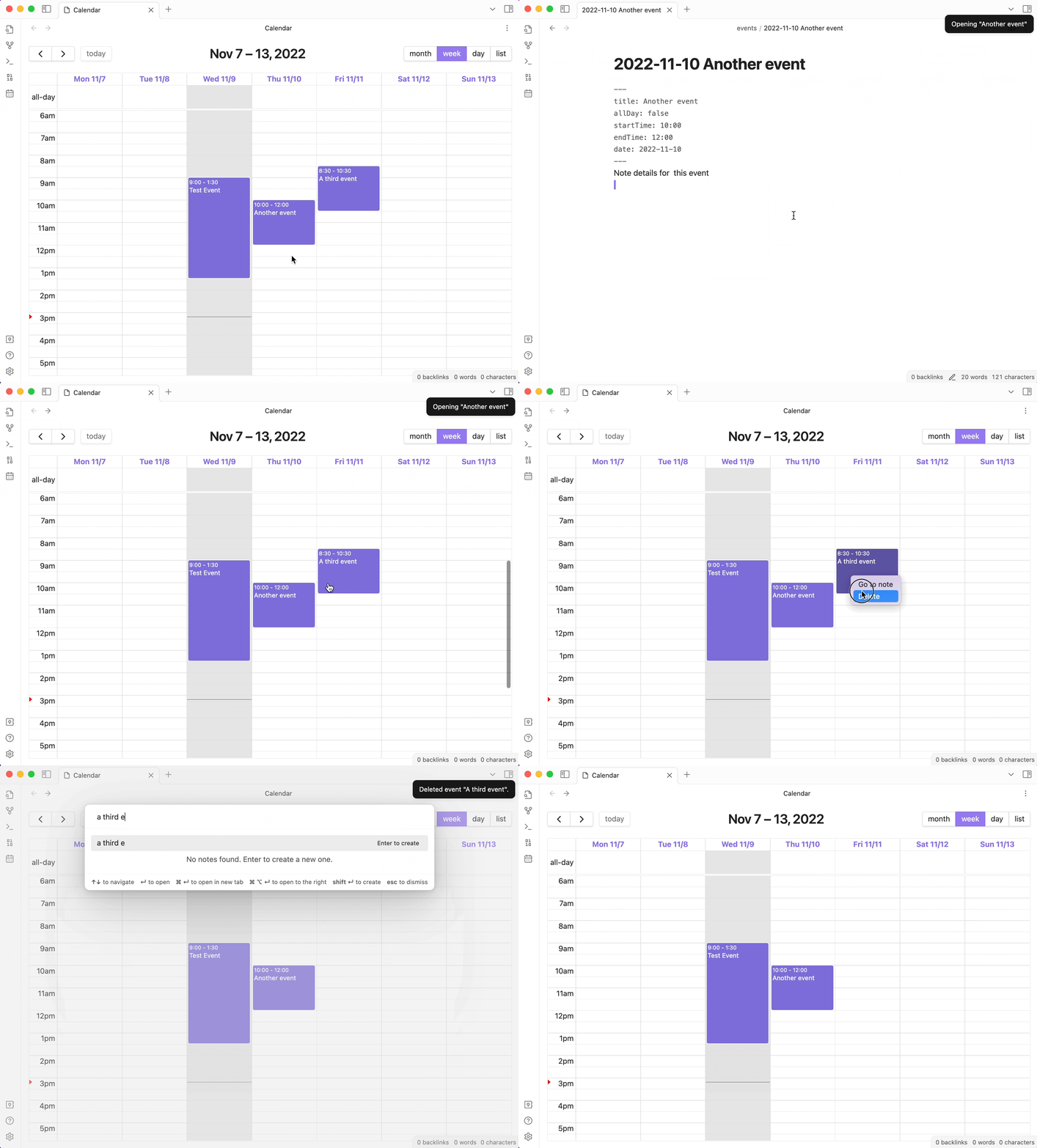
Right-click on any event to open a context menu with context-aware actions.
Universal Actions
- Open Location URL: When an event has a valid URL in its
locationfield (such as Google Meet, Zoom, Microsoft Teams, or web map links), this action appears at the top of the menu with an external link icon. Clicking it opens the link directly in your default web browser. Available across all providers and editability levels.
Provider & Navigation Actions
- Open linked note: For remote providers supporting Event Linked Notes (Google Calendar, CalDAV, Outlook, ICS, Holidays), opens the attached note or immediately creates one from your configured template if it does not yet exist.
- Go to note: For local note-backed events (Full Note, Daily Note, Journals), jumps directly to the source note in a new tab.
Task & Display Actions
- Turn into task / Remove checkbox: Quickly toggles an event between an appointment and a schedulable task.
- Display regular / background: Toggles background events into regular calendar events when supported.
Deletion Actions
- Delete: Deletes non-recurring events without opening the modal editor.
- Delete only this instance / Delete entire series: For recurring events, offers a safe choice between removing a single occurrence (creating an exception) or purging the whole recurring series.